Connect with SimpleFIN
Bring in read-only bank balances and transactions, review the evidence, then use the shared planning and reporting workflow.
Start with the plan. Keep real transactions in Activity, check them against your accounts, review Reports, and close the month only after its transactions and balances look right.
Bring in read-only bank balances and transactions, review the evidence, then use the shared planning and reporting workflow.
Add accounts, record transactions yourself or import statements, review balances, and close the month. No provider subscription is required.
You can mix approaches account by account and connect later. Recurring setup is optional. Your timezone lives in Settings → Workspace.
Use this when the month is meaningfully different and you want to pull in only the recurring pieces that still apply.
Use this when the next month mostly follows the same pattern and you want a fast starting point instead of retyping the same items.
Once a month is open, use the previous and next month arrows around the month title to move between saved months without hunting through the month list again.
Cloning copies the plan into the next open month, moves its dates, clears payment details, and marks each item as planned again. When last month has an actual amount, the new plan starts with that amount. Use Plan and Edit afterward to add any recurring transactions that were not in the cloned month.
Budget, Breakdown, and Plan and Edit show the same month. Your filters and Grouped, Full List, or Calendar choice stay selected while you move between them.
Add a real transaction from Activity when it happened outside the plan. Record the account, date, payee, amount, and direction so account balances can explain the movement.
Match an account transaction to the planned item it fulfills. The actual transaction and the original plan both remain available. Unmatch them if the connection was wrong.
Review the rows that will import, correct errors, spot duplicates, and see how balances will change. After you confirm an account activity import, it continues in the background with saved progress; you can leave the page and return. Inspect the saved import before recording overlapping manual or bank activity.
Filter Activity by account, date, or source. Review holds decisions to make; Bank review, Pending, Ignored, Payments clearing, All, Unmatched, and Imports keep each kind of work visible. Older records remain available through pagination.
Imported transactions that cannot be matched safely stay visible until you choose the correct account or plan item. Check the original details instead of guessing.
SimpleFIN transactions arrive in Activity → Bank review. Inspect the source before accepting unplanned activity, matching a plan, or pairing a transfer. Pending transactions remain separate and do not count as posted actuals.
If you already recorded the movement manually or imported it from a statement, use Attach to existing transaction. This adds bank evidence without posting the money twice. Detaching that evidence keeps the original transaction.
Open Payments clearing for recorded payments still reserved against a bank balance. Match posted evidence or confirm the actual clearing date yourself. The manual clearing path remains available with balances-only connections and after disconnecting.
Add recurring transactions for the repeating monthly items you expect so you can pull them into a month instead of re-entering them every time. This is where most people save paychecks, bills, subscriptions, payment plans, and card payments before creating the month.
Recurring income sources such as payroll or regular transfers that you usually set up before creating the month.
Recurring services such as streaming, mobile plans, and software bills.
Fixed or variable recurring bills such as rent, utilities, insurance, or other regular charges.
Balances paid down over time, such as installment plans, taxes, or loans with a monthly target.
Store minimum payment, due day, and payoff priority here for cards you pay regularly. You can also create a credit card account and schedule its monthly payment from the account setup flow. Link the card account that is being paid down and the checking or cash account that will make the payment so the month entries already match the real flow of money.
Each account separates its latest balance, completed transactions, and upcoming planned transactions. Open Activity or account history to see what changed the current and projected balances.
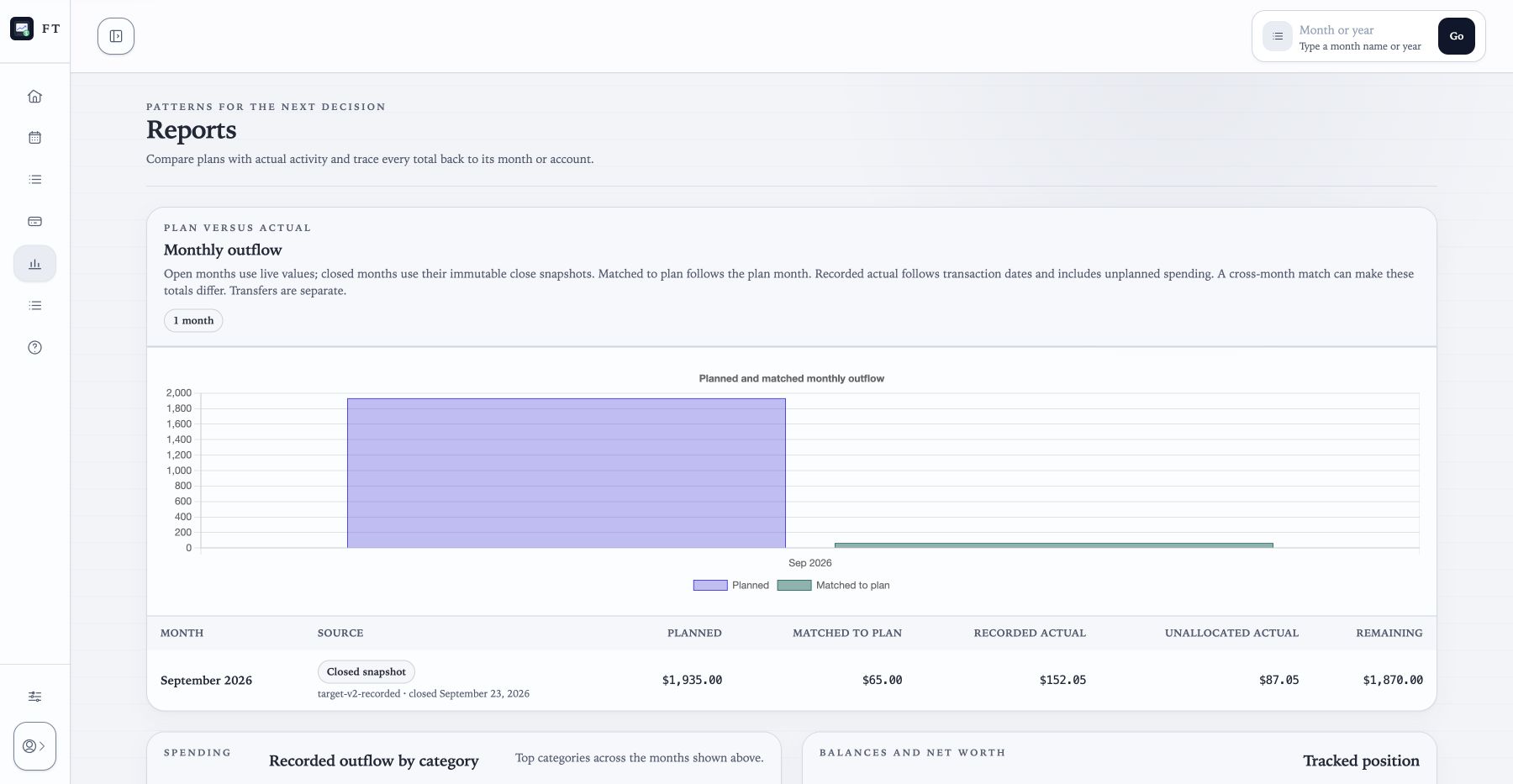
Reports separates recorded actuals, which follow transaction dates and include unplanned movement, from matched-to-plan amounts, which follow the planning month. Partial matches leave an unallocated remainder. Cross-month matches can make the two totals differ.
Trend graphs show income, outflow, and net movement across periods. Exact-value tables and labels provide the same values for people who do not use color or hover.
Category reports show where spending is concentrated. Open a category to see the transactions included in its total.
Reports update while a month is open. New closes freeze recorded and matched-to-plan totals separately. Older closes retain only the evidence they originally stored. Reopen the affected month if you later need to correct a transaction.
Open exact values or the transactions behind a total whenever you want to verify what the chart shows.
Reopening lets corrections update the plan, Activity, Accounts, and Reports again. The app asks you to confirm so a closed month does not change accidentally.
If your accounts are not set up yet, go back to Getting Started.
For charts, backups, restoring data, and safe upgrades, continue to Reference.
Activity separates posted records, bank review, pending items, ignored bank items, payment clearing, and statement import history. Filter by account and date. Accept bank evidence before it affects totals; leave valid unplanned activity unmatched.
Use Attach to existing transaction when bank evidence describes a manual or CSV transaction already in Activity. Matching only a plan is a different action. For transfers, pair equal opposite posted bank sides or record both accounts manually.
Reports distinguishes recorded actuals by transaction date from amounts matched to a planning month. Unallocated amounts include partial-match remainders. Close preview and submit use the same checks: reserved payments, changed accepted bank evidence, and uncertain balance coverage must be resolved. Pending or unaccepted bank items are excluded; a provider outage alone does not block closing.