Track without a bank connection
Set up accounts, record or import actual activity, reconcile balances, close a month, and back up your workspace without SimpleFIN.
Start with an account and a dated balance
Choose Track without a connection on Home. Add checking, savings, cash, credit cards, or other accounts you want to track. Enter a balance and its date from a statement or your own records. Choose an opening balance only when it describes the start of that day.
You can defer the balance while you set up a month. Activity remains available, but an app balance or projection needs a trusted starting source. Set the shared transaction timezone in Settings → Workspace.
Build the first useful month
Create a month from Plan and add a few planned income and expense items. Link each item to the account it affects. Recurring setup is optional: save repeat paychecks, bills, subscriptions, payment plans, and card payments when they help. You can skip recurring setup and resume it later.
Use Confirm received for income and Record payment or Record transfer for planned movement that has happened. These actions record information; they never send money.
Record actual activity
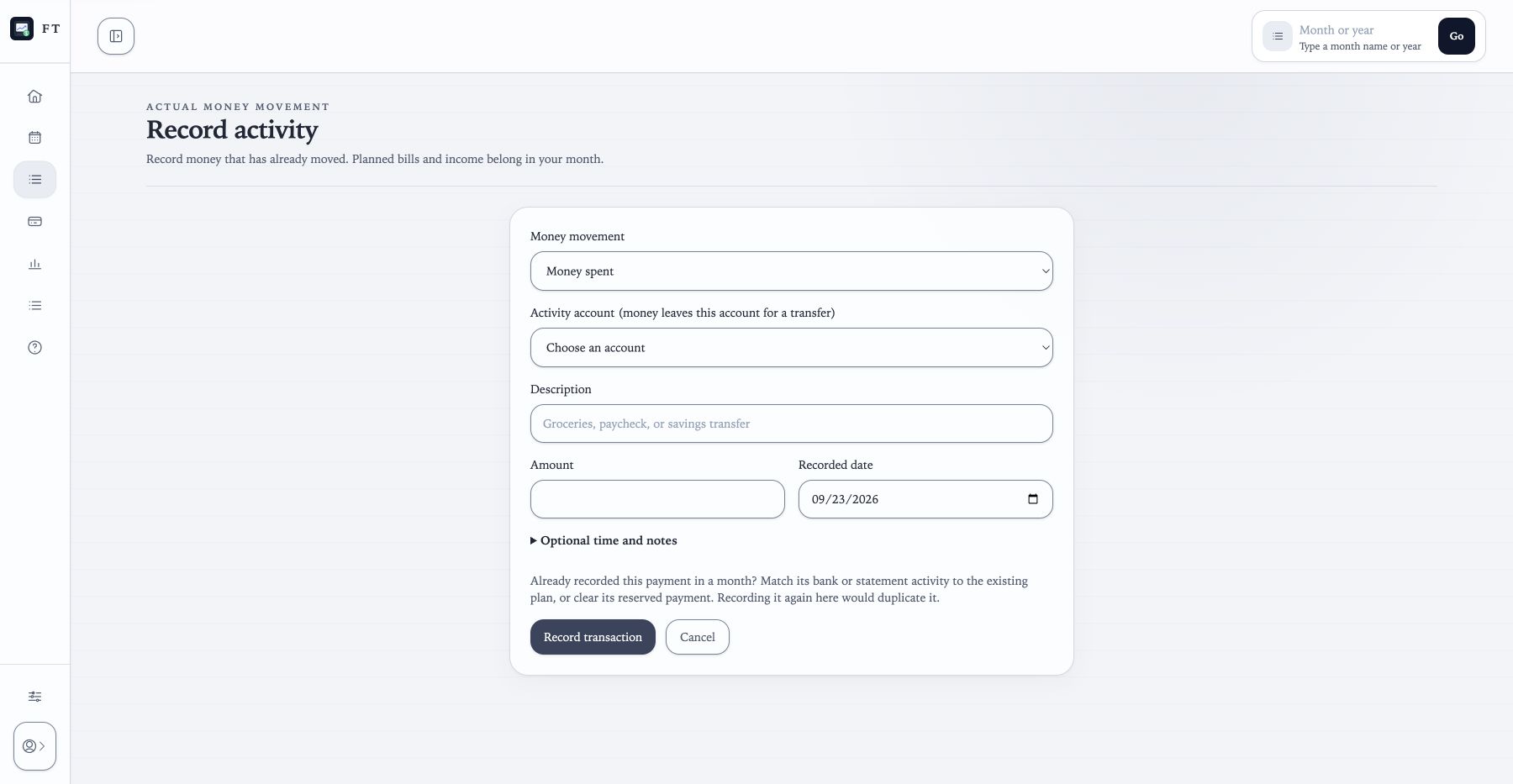
Open Activity → Record transaction. Choose money spent, income received, or a transfer. Select the account, amount, description, and recorded date. Time and notes are optional. Transfers require two different accounts and create equal opposite movements.
Use this for new actual activity. If a payment is already recorded against a month entry, match its statement or bank evidence instead of recording it again. An unmatched manual transaction is valid unplanned activity; you do not need to invent a plan item.
To correct a direct manual entry, unmatch it first, use Reverse manual entry, and record the replacement. History is retained. Closed months must be reopened before changing their activity.
Import statements into the account you choose
Choose Activity → Import activity, select the account, and choose its CSV statement. Check the preview dates, signs, columns, and duplicate counts before committing. The import can finish in the background; open its operation status to confirm completion.
A statement import records actual activity. A month-plan import builds planned items and is a different workflow. File fingerprints skip known repeated rows; they do not prove that a manually entered or bank-sourced transaction is a duplicate.
Review statement activity, match it to an open plan when appropriate, or choose Reviewed · keep unplanned. If SimpleFIN later brings the same movement, use Attach to existing transaction in Bank review. Check the account, date, amount, and description yourself.
Check balances and clear payments
Accounts shows your app balance, its source date, and a projected balance based on remaining plans. Open the calculation and history to inspect the records. Update dated manual balances as often as your financial routine needs.
If an account previously used SimpleFIN, existing payment reservations remain until you resolve them. Open Activity → Payments clearing, confirm the clearing date from your records, and choose Confirm cleared. This replaces the outstanding reservation with one posted movement. It also works with balances-only accounts or after disconnecting. Use Undo clearing if you made a mistake.
Review reports, close, and recover
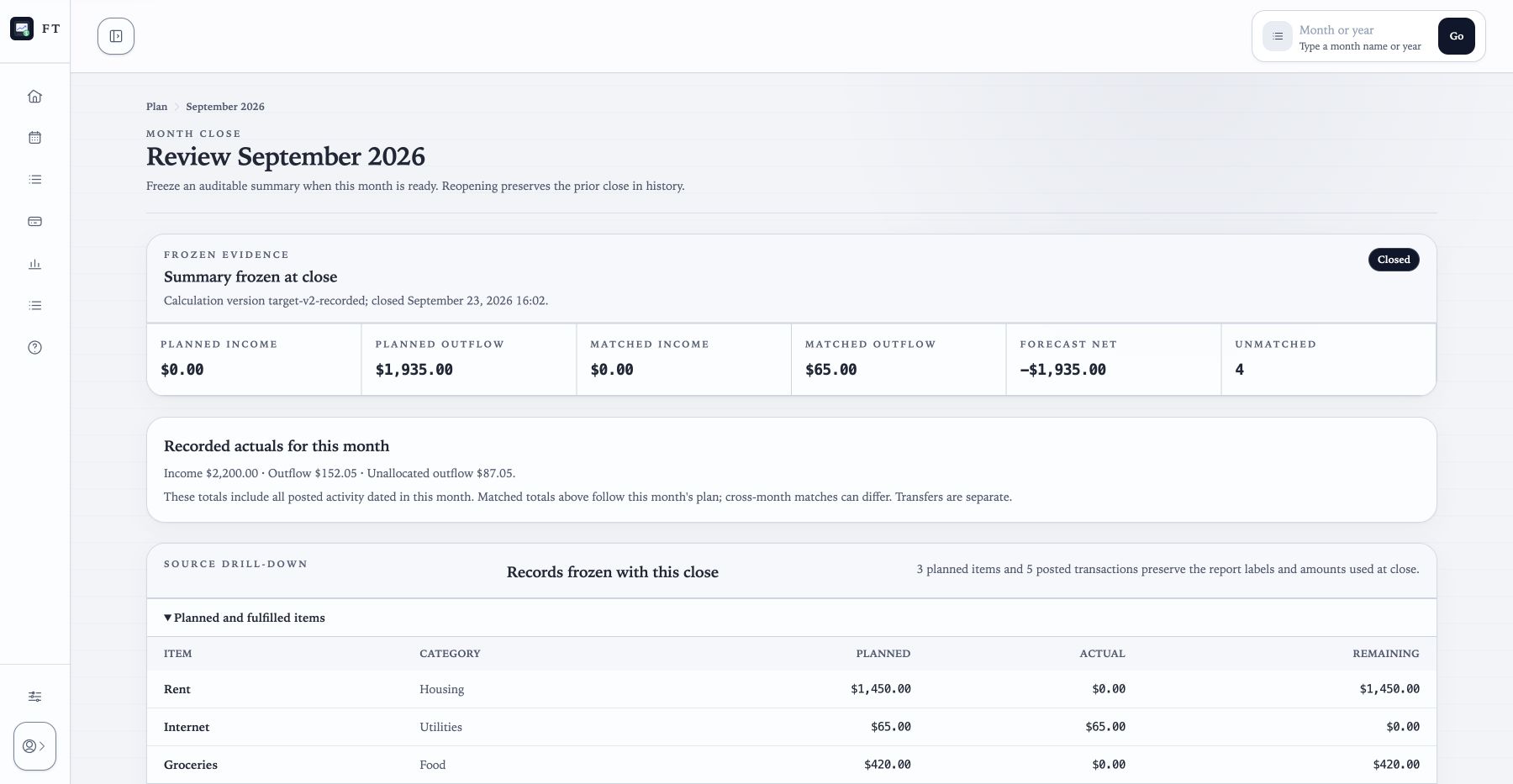
Reports distinguishes Recorded actual, which follows transaction dates and includes unplanned spending, from Matched to plan, which follows the planning month. Unallocated actual includes the remainder of partial matches. A cross-month match can make these totals differ.
Open the month-close preview. Resolve reserved payments, changed accepted bank activity, and uncertain bank-balance coverage before closing. Missing balance sources and excluded pending or unaccepted bank activity are coverage warnings. New closes freeze both definitions; older closes keep the evidence they originally stored.
Download a complete Backup v2 from Settings → Manage data, or use an operator-configured encrypted backup schedule. Always preview a restore. Bank credentials do not travel in backups, so you can continue manually after restoring.
Connect some accounts later
You can keep manual accounts and connect others. Follow the SimpleFIN walkthrough and map discovered accounts to the ones you already use. Review overlapping transactions before accepting new ledger effects. Your month, recurring templates, and reports stay in the same workspace.